AES-256-GCMmacOS 15+Zero Data Collection$9.99 One-Time
256-bitAES-GCM Encryption
600KPBKDF2 Iterations
ZeroData Collected
3-PassSecure Shredding
"The best encryption app for Mac. Simple, beautiful, and actually secure. Exactly what I needed."
- Early access user (anonymous by request)
Features
Everything you need. Nothing you don't.
Five powerful tools working together to keep your files private, secure, and completely under your control.
Encryption
Drag, drop, encrypted.
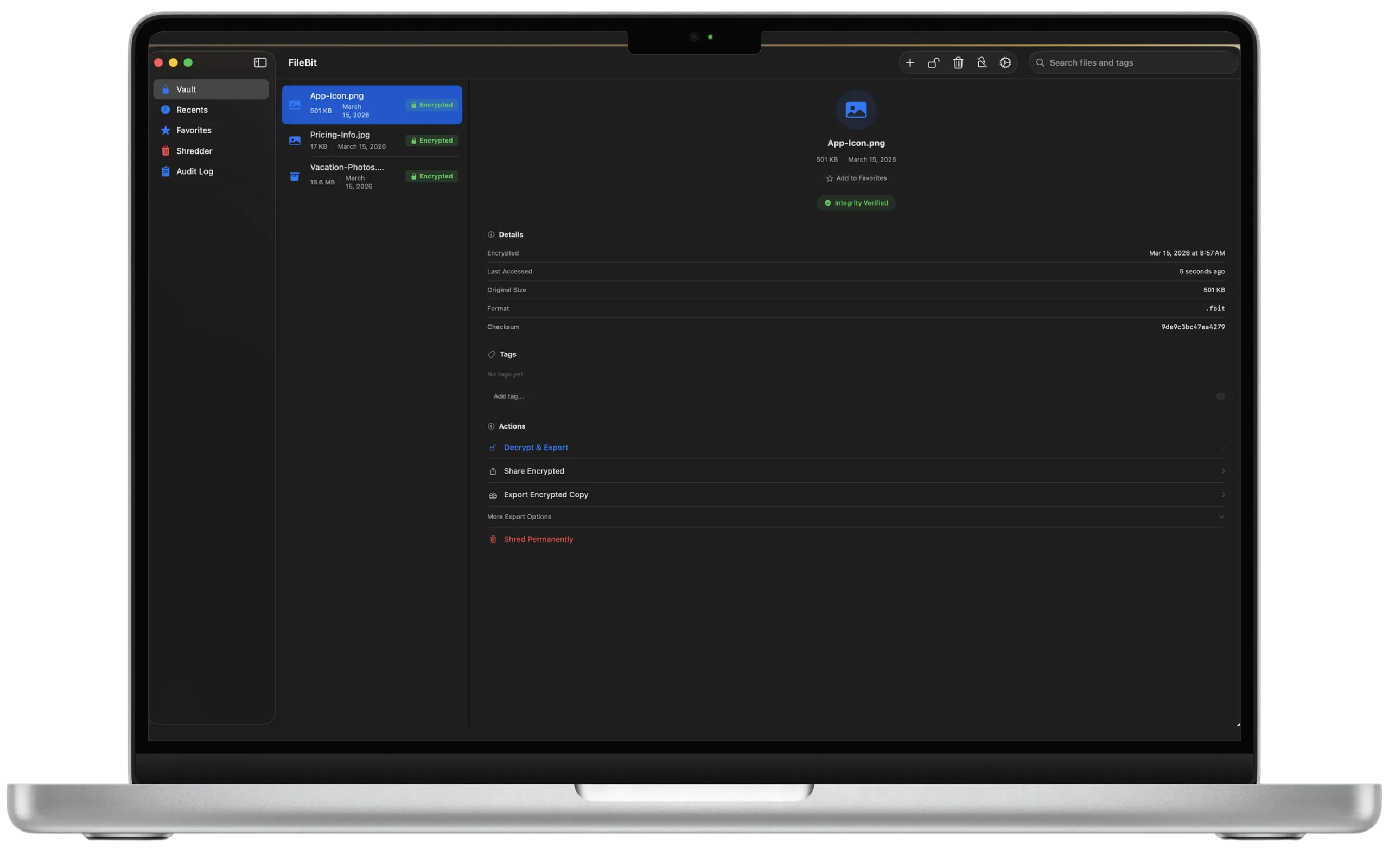
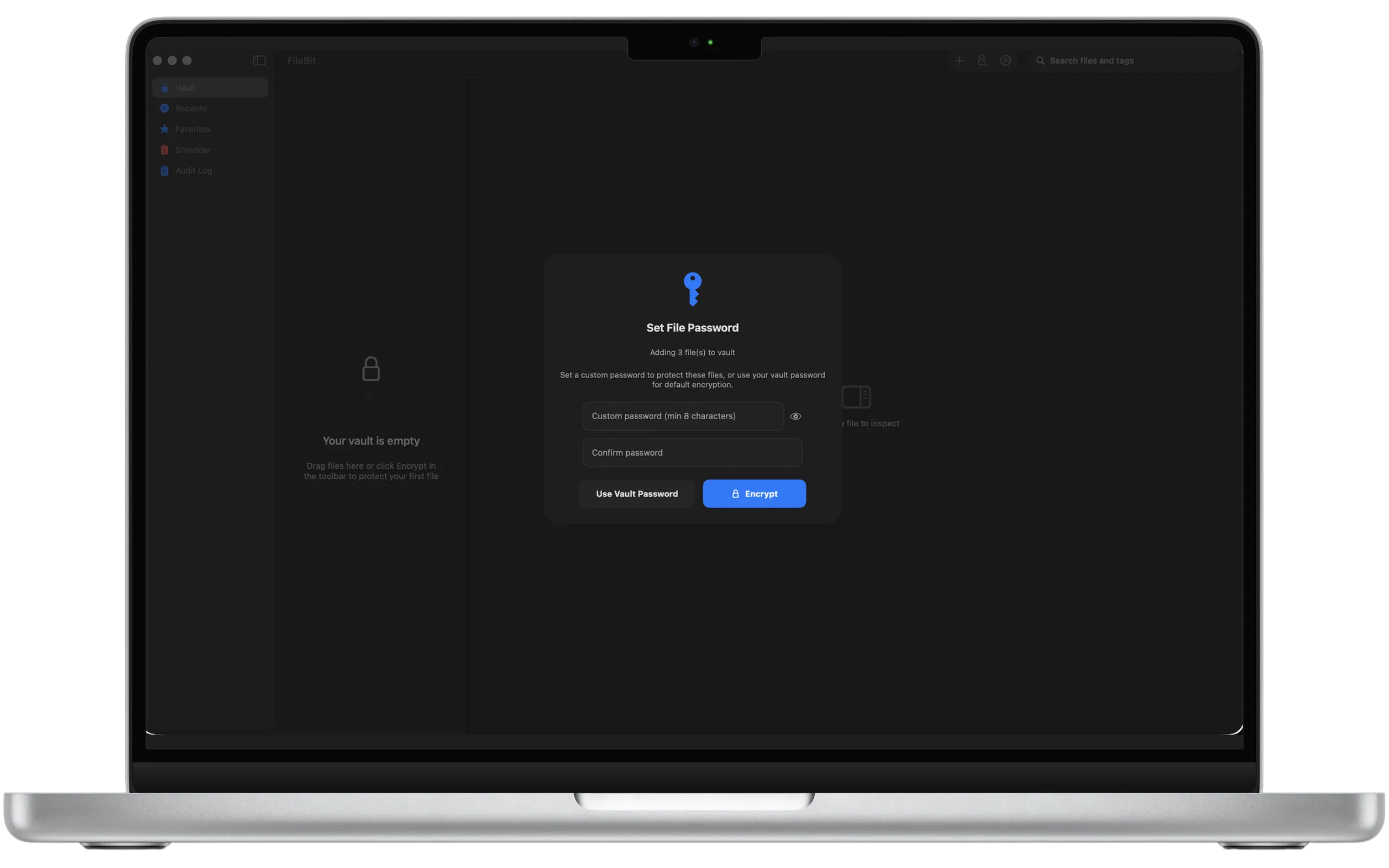
Protect any file in seconds. Drag into FileBit and it's instantly secured with AES-256-GCM. Use your vault password or set a custom one per file.
Drag & drop any file or folder
Custom password for sharing
SHA-256 integrity verification
Biometric Security
Unlock with Touch ID.
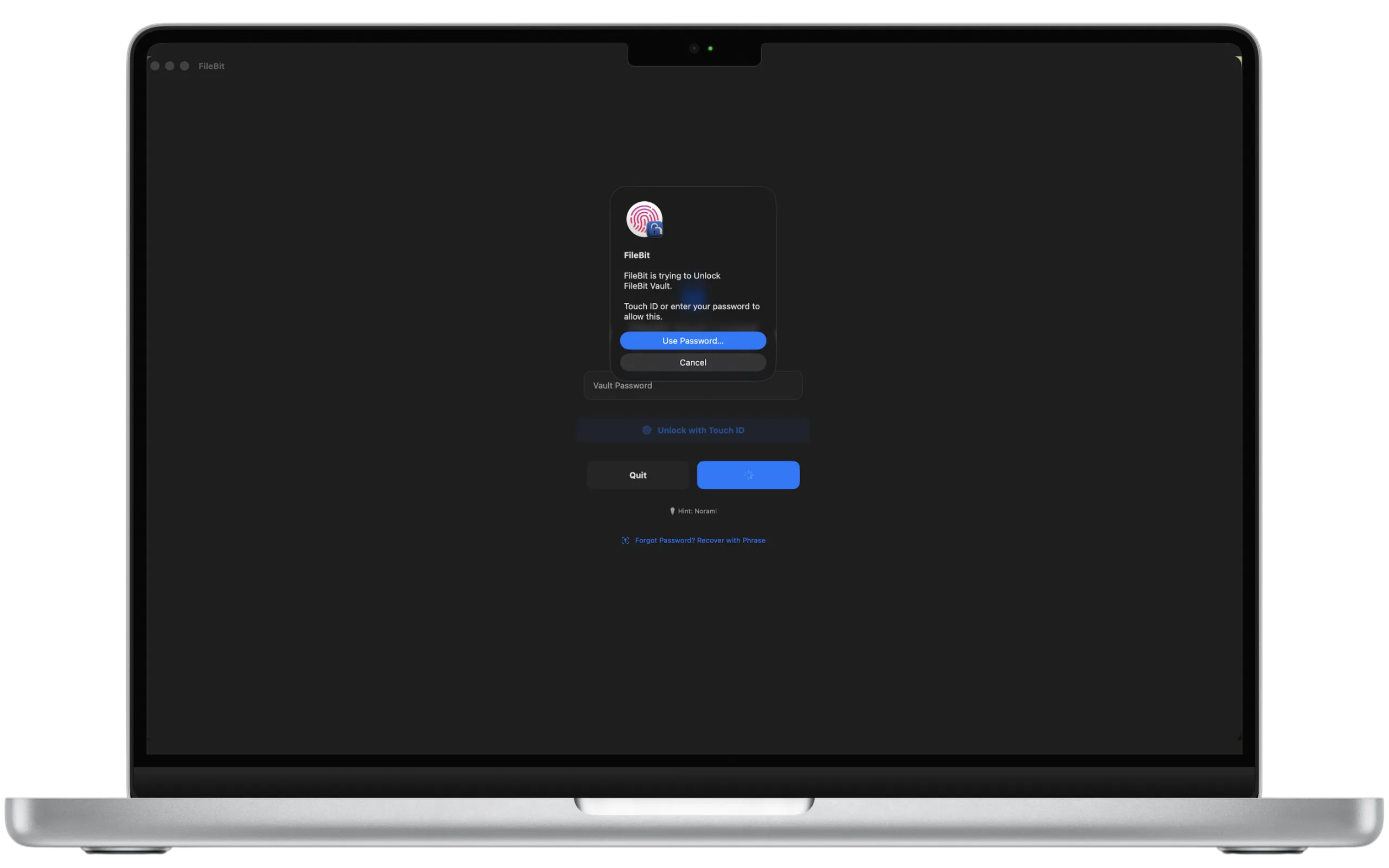
Your vault password is stored in the macOS Keychain with biometric access control. The Secure Enclave handles verification, and your password never leaves the chip.
Touch ID via Secure Enclave
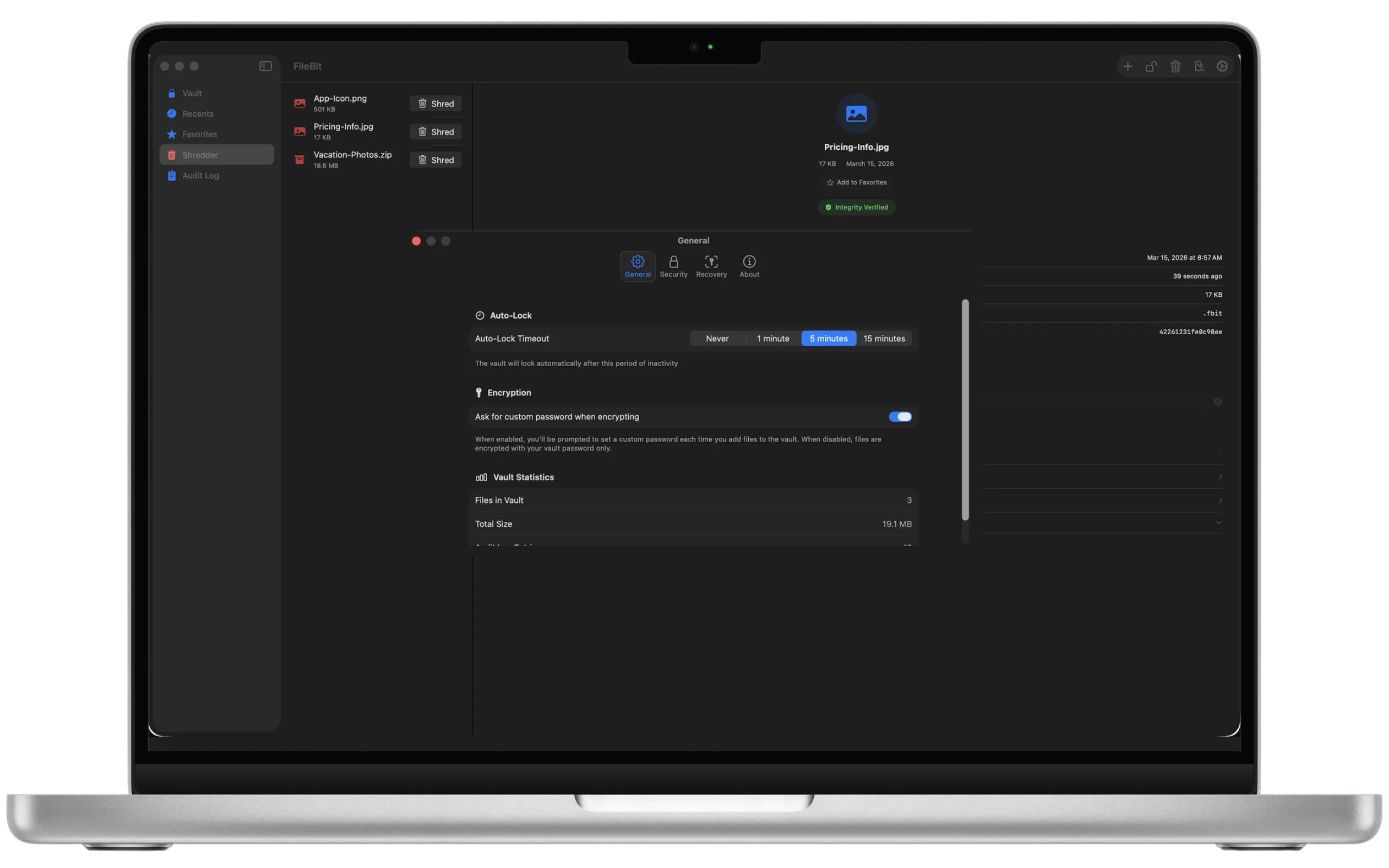
Configurable auto-lock timeout
Cmd+Shift+L instant lock
Decryption
Decrypt with a double-click.
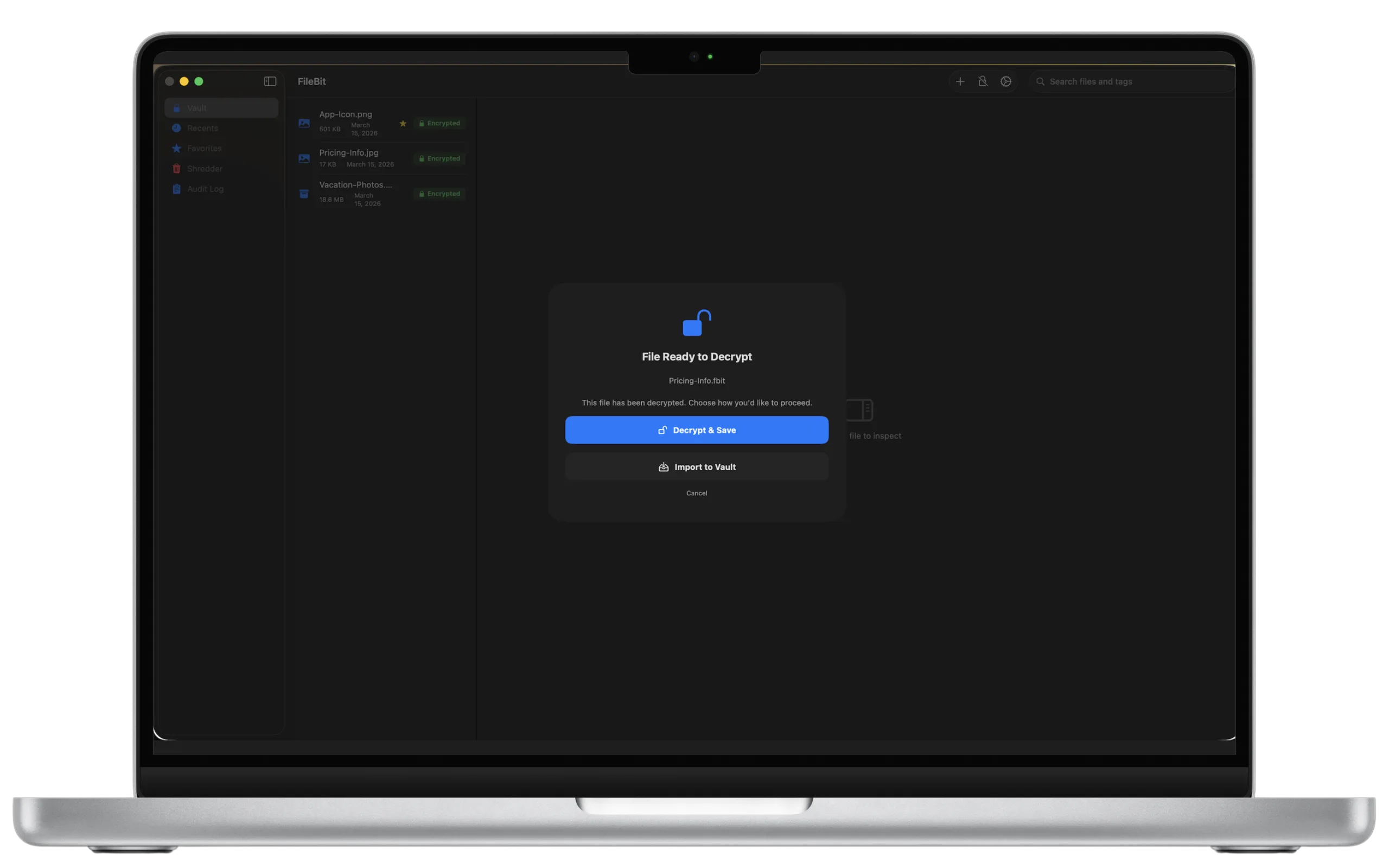
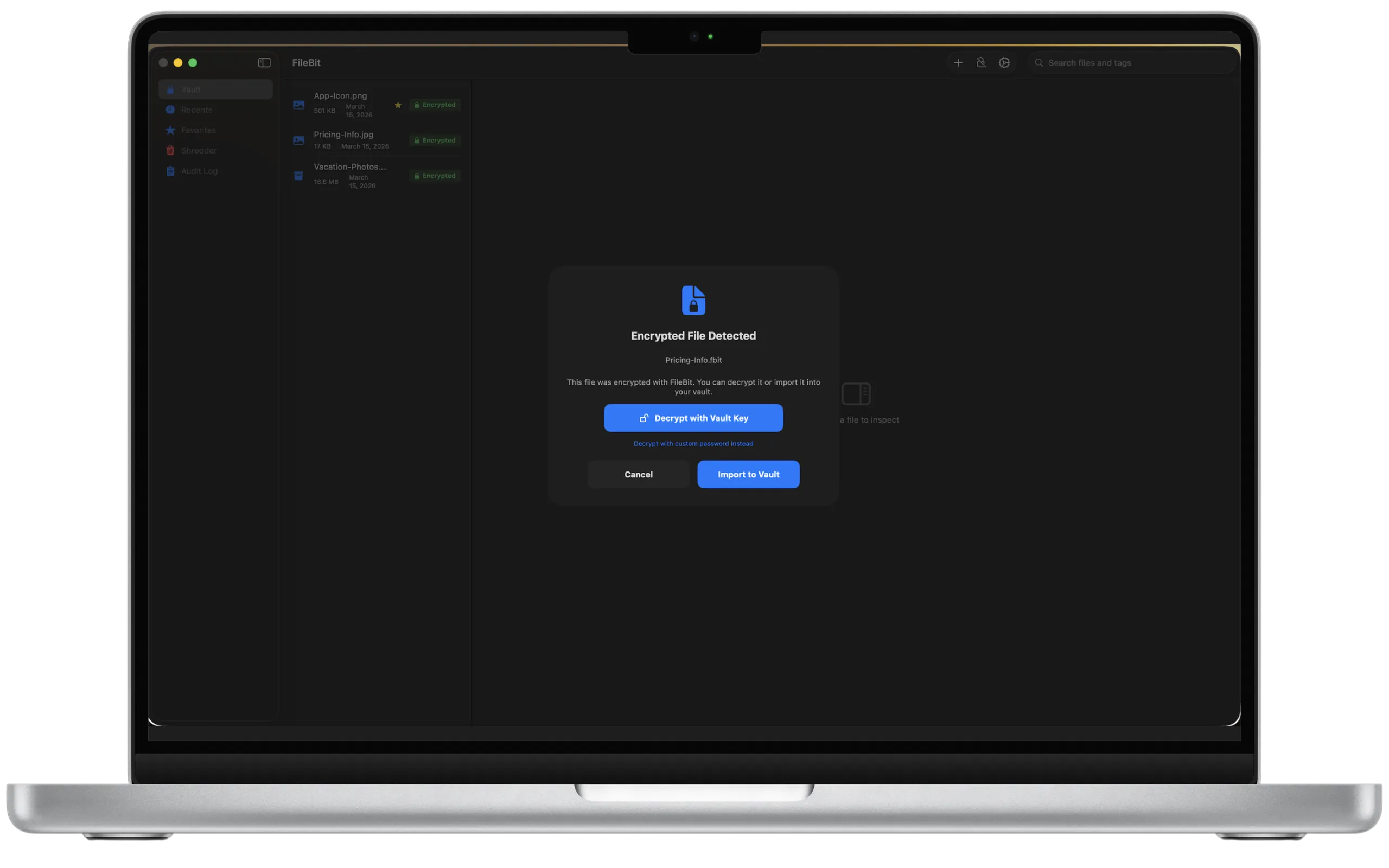
Open any .fbit file and FileBit auto-detects it. Decrypt and save to disk, or import directly into your vault. It handles vault-key and custom-password files.
Auto-detects .fbit files
Decrypt & Save or Import to Vault
Supports vault key & custom passwords
Secure Shredding
Gone means gone.
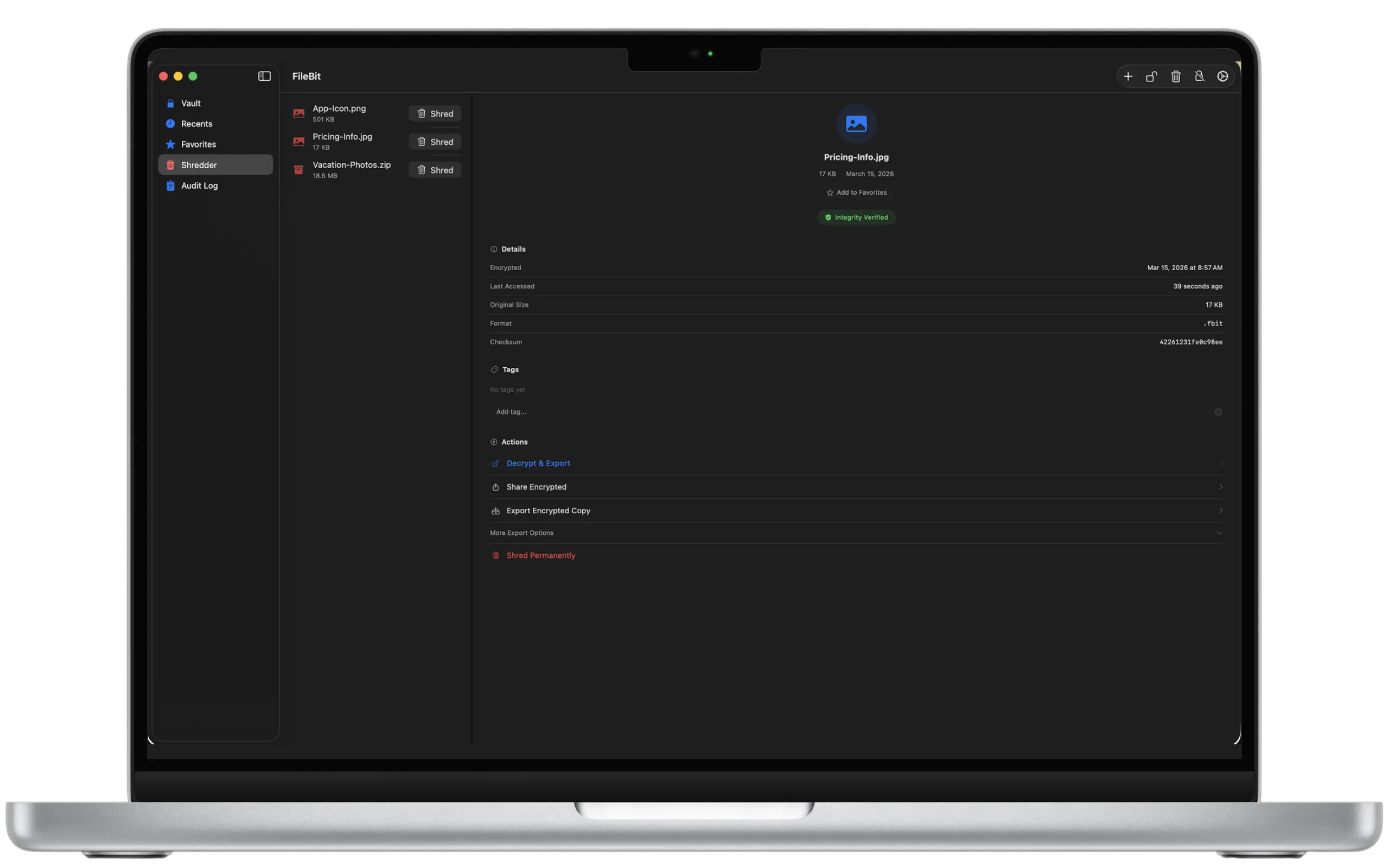
FileBit overwrites files with a 3-pass algorithm: zeros, ones, then random data. After that, the file is deleted. Recovery is mathematically impossible.
3-pass overwrite (0x00, 0xFF, random)
Disk flush after each pass
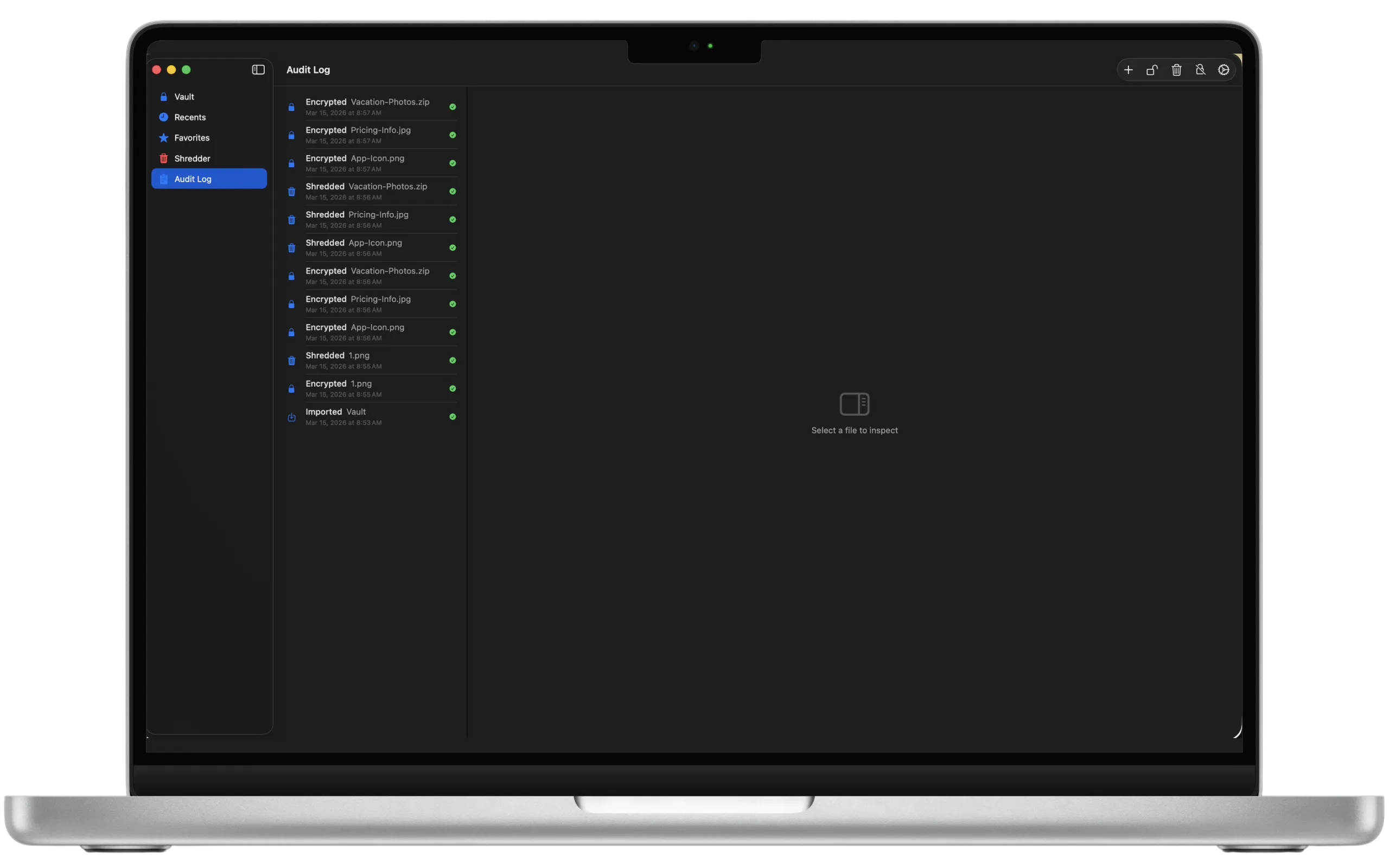
Full audit log of every action
Recovery
12 words. Complete recovery.
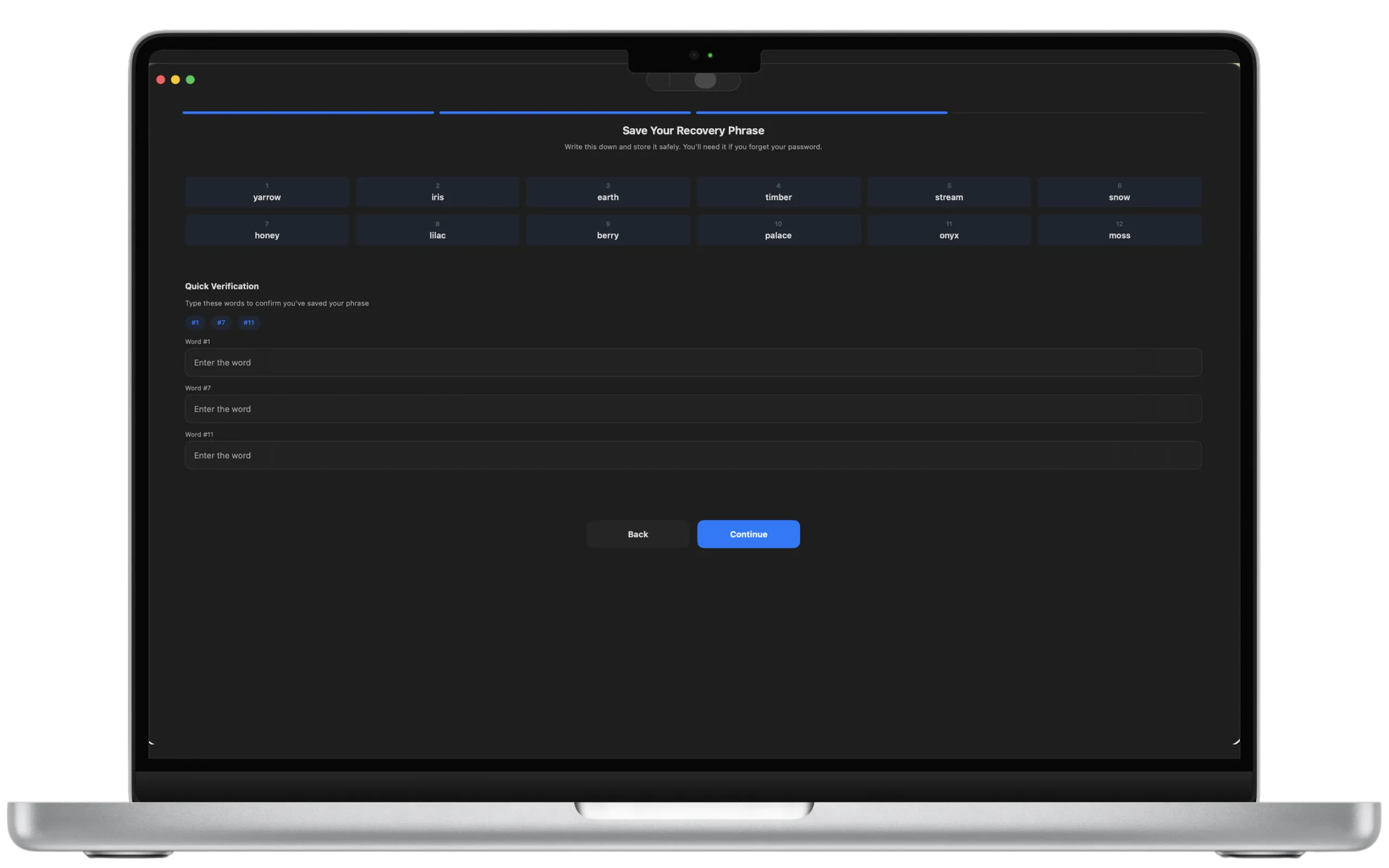
FileBit generates a 12-word BIP39-style recovery phrase at setup. Forget your vault password? Enter these words to regain access and set a new one.
BIP39-style 12-word phrase
3-word verification challenge
Re-encrypts vault with new password
Encryption
Drag, drop, encrypted.
Protect any file in seconds. Drag into FileBit and it's instantly secured with AES-256-GCM.
Drag & drop any file or folder
Custom password for sharing
Biometric Security
Unlock with Touch ID.
Your vault password is stored in the macOS Keychain. The Secure Enclave handles verification.
Touch ID via Secure Enclave
Configurable auto-lock timeout
Secure Shredding
Gone means gone.
3-pass overwrite before deleting. Recovery is mathematically impossible.
3-pass overwrite (0x00, 0xFF, random)
Full audit log of every action
Under the Hood
Built for security. Designed for simplicity.
Every feature exists to protect your files without getting in your way.
AES-256-GCM Authenticated Encryption
Every file is encrypted with the same standard used by governments and financial institutions. GCM mode provides both confidentiality and integrity, so tampering is instantly detected.
PBKDF2-SHA256
600,000 Iterations
Industry-leading key derivation makes brute-force attacks computationally infeasible.
Full Audit Log
Every encrypt, decrypt, shred, and import is timestamped and logged, stored only on your device.
Secure Sharing
Share encrypted .fbit files via AirDrop, Messages, or Mail. Recipients only need the password. No FileBit account required.
Native macOS
Zero Network
Completely offline. No servers, no analytics, no cloud sync. Everything stays on your Mac.
Touch ID + Keychain
Biometric unlock via the Secure Enclave. Your vault password lives in the macOS Keychain and never leaves the hardware.
Tags & Favorites
Organize encrypted files with custom tags. Star important files for instant access from the Recents view.
How We Compare
Why FileBit.
See how FileBit stacks up against the alternatives.
Feature
FileBit
Others
AES-256 Encryption
GCM Mode
Varies
Zero Network Access
Always
Cloud-based
One-Time Purchase
$9.99
Subscriptions
Touch ID / Biometrics
Secure Enclave
Rare
Secure File Shredding
3-Pass
Not included
No Account Required
Never
Required
See every detail.
A native macOS experience built with SwiftUI. Drag to scroll or use the arrows.
Privacy
Privacy isn't a feature. It's the foundation.
FileBit was built from day one with a zero-collection philosophy.
Zero Network
No servers, no APIs, no outbound requests. Ever.
No Analytics
No telemetry, no crash reporters, no third-party SDKs.
Local Only
All data stays in ~/Library/Containers on your Mac.
During setup, FileBit gives you a 12-word recovery phrase. Store it somewhere safe. If you ever forget your password, enter those 12 words to regain access. Without the phrase, there is no recovery path by design.
No. FileBit makes zero network requests and collects zero data. Your files, vault password, and encryption keys never leave your device. The app operates entirely offline.
AES-256-GCM is used by the US government for Top Secret classified data, by banks, and every major password manager. Combined with PBKDF2-SHA256 at 600,000 iterations, brute-forcing a FileBit vault is computationally infeasible on any existing hardware.
.fbit files are self-contained encrypted containers with AES-256-GCM ciphertext, a random 96-bit nonce, a key derivation salt, and a SHA-256 checksum. Anyone with FileBit and the correct password can decrypt them. No account or subscription required.
Yes! Export encrypted .fbit files to any folder, including iCloud Drive or Dropbox. FileBit encrypts before the file ever leaves your Mac, so the cloud provider only sees ciphertext they can't read.
FileBit's shredder uses a 3-pass DoD-inspired overwrite: 0x00, then 0xFF, then cryptographically random data with a disk flush after each pass. On Apple Silicon Macs with APFS encryption-at-rest, even a single-pass deletion is highly secure.